


In this instruction you will learn how to apply for a Gnosis Pay payment card. With this card you can instantly spend money at any store that accepts VISA. You can also use the card as a credit card for online purchases.
Already have a Gnosis Pay account?
In that case, you can follow the steps on this page: Add existing account.
Don’t have a Gnosis Pay account yet?
Follow the steps below. Make sure you have a valid ID document and (digital) proof of address ready. You can start the application when you start a new Greenhood account, or from the settings at the top item called ‘Complete your set-up’.
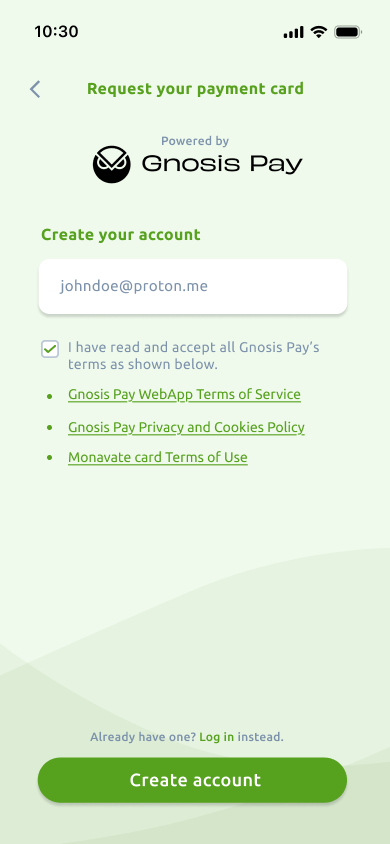
Create your account
- Enter your email address, accept the terms, and tap Create account.
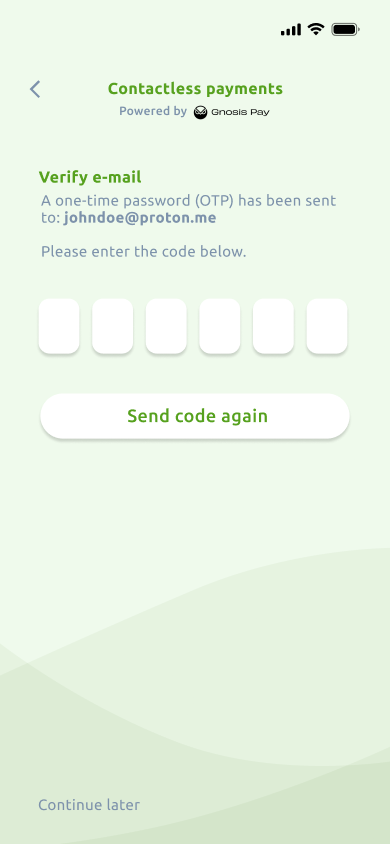
- Check your inbox for a one-time verification code and enter it in the app.
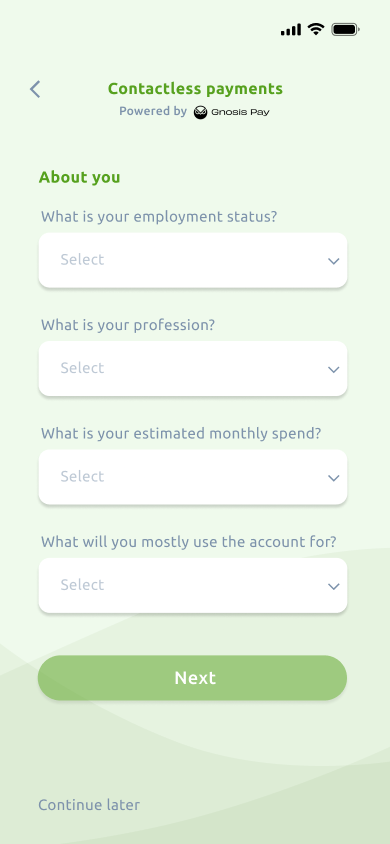
- Complete the Source of Funding questionnaire. You’ll be asked four multiple-choice questions, select the options that best apply to you.
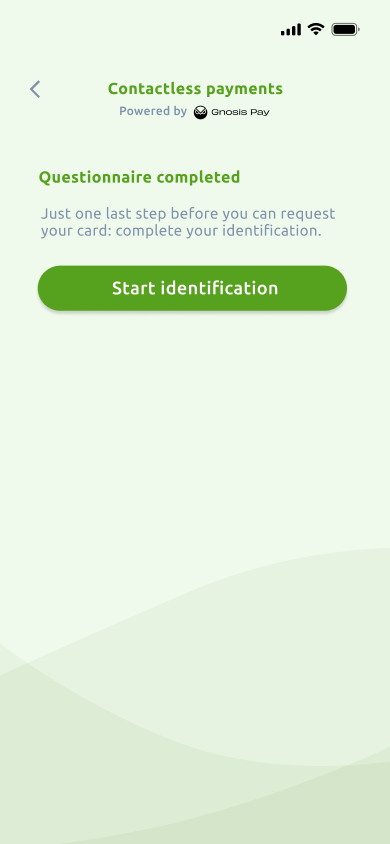
- Once completed, you can proceed to the identification step.
Identify with Gnosis Pay
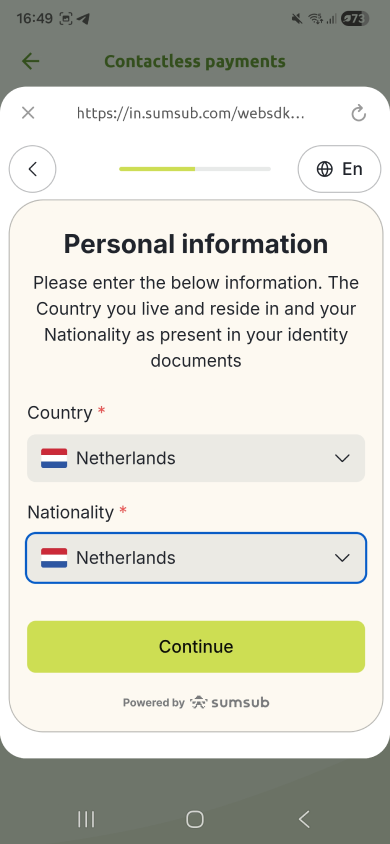
- Select your country of residence and nationality.
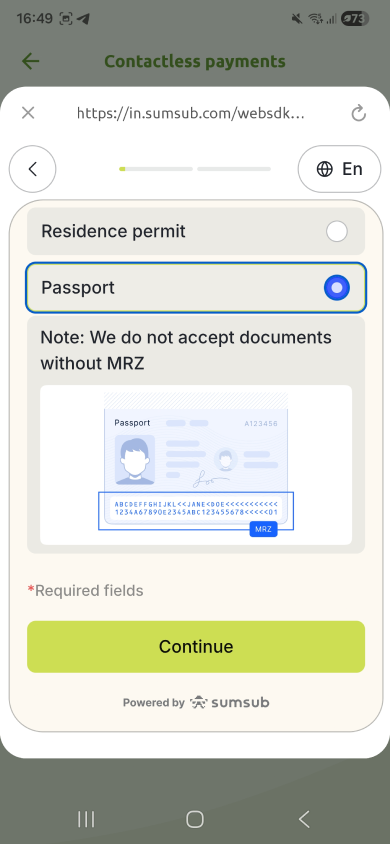
- Choose the type of ID you want to use and tap Proceed.
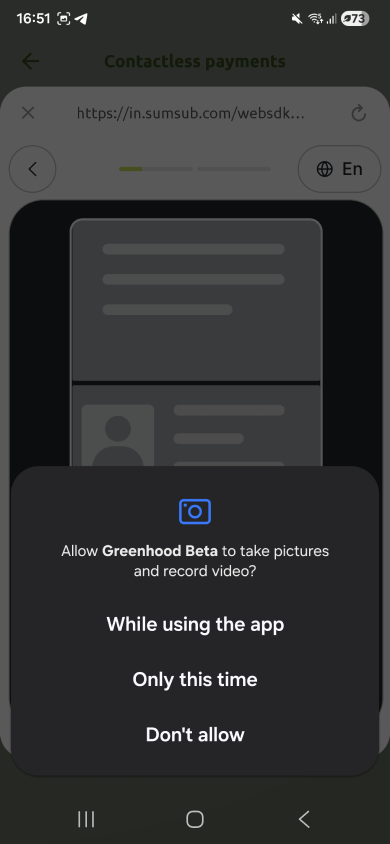
- If prompted, allow the app to access your camera.
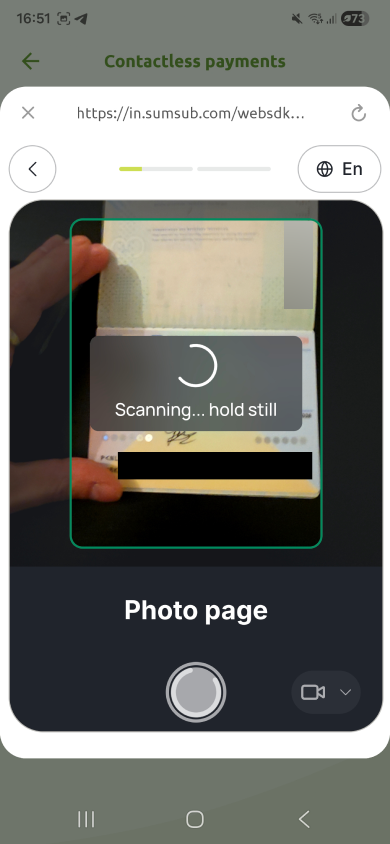
- Scan your ID. Verification usually completes within a few seconds.
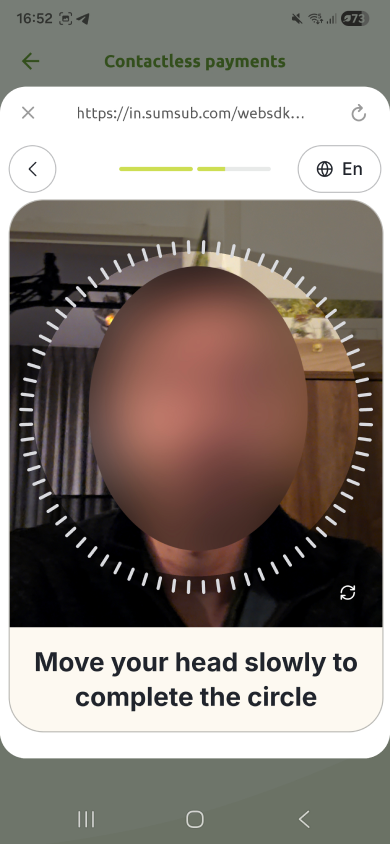
- Continue with the interactive selfie: slowly move your head in a circle until all indicators turn green. Camera permission may be required here as well.
- Lastly, upload a Proof of Address. Your document must be less than 3 months old and clearly show your name and address. Acceptable examples include utility or recurring service bills. (One-time ecommerce receipts do not qualify.)
- Your document will be verified automatically. If verification fails, try again with the same or a different document. If you get stuck here, please contact Gnosis Pay support at support@gnosispay.com.
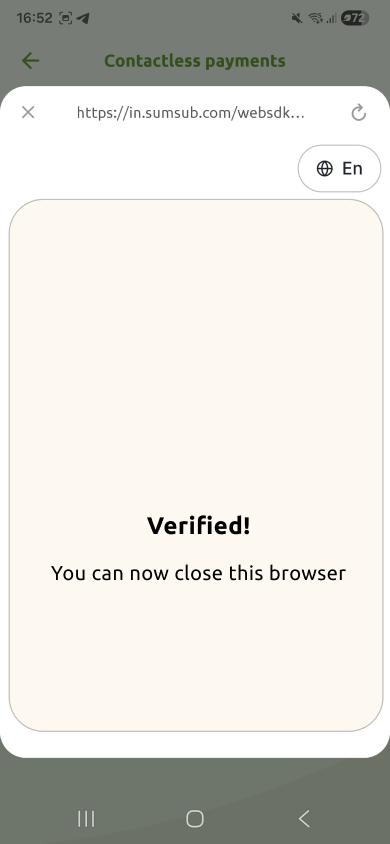
- Once complete, you will get a confirmation that will clarify you can close the browser.
Order your Gnosis Pay card
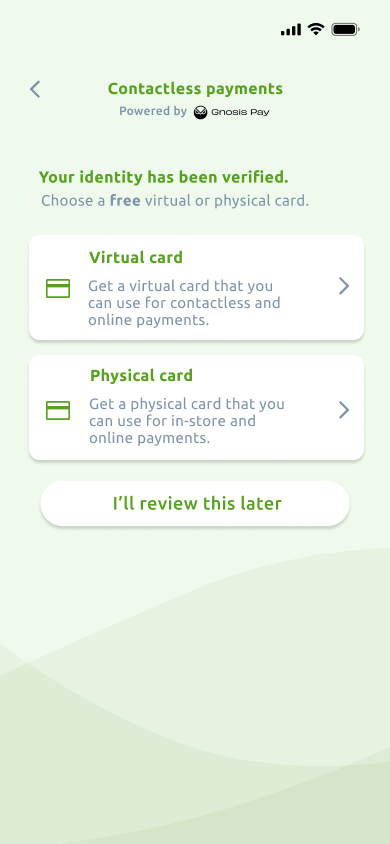
You can now finalize the process by ordering your card. You can order a virtual card, which is available immediately, or you can order a physical card which usually is delivered within a week.
- Select the card type you want to order.
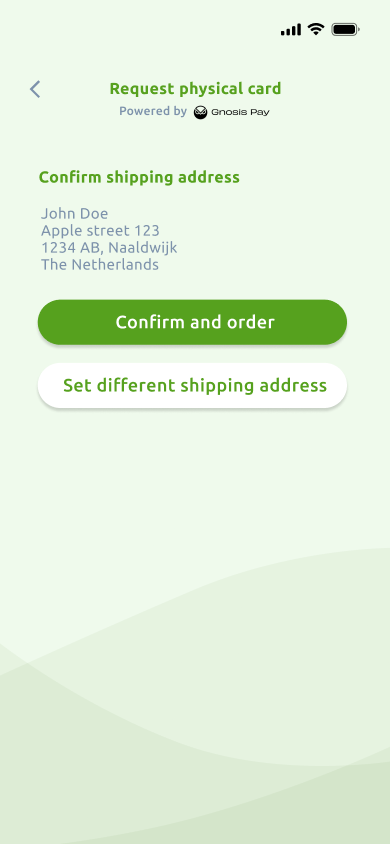
- If you choose a physical card, review and confirm your shipping address, or update it if needed. The address must be located in your country of residence.
- That’s it, your card order is complete!
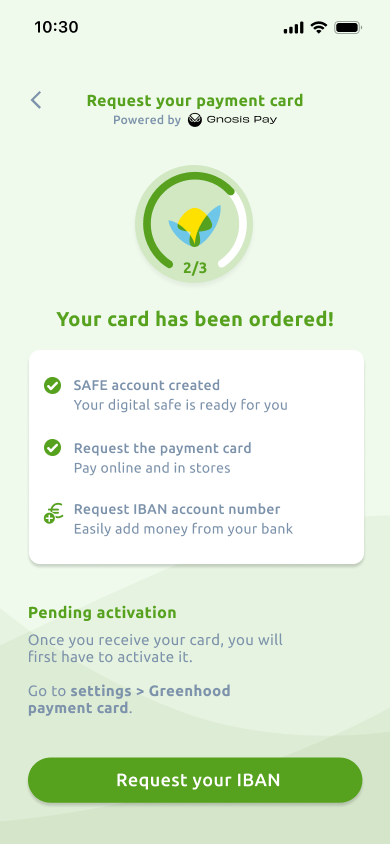
Extra steps for the physical card
- Set your PIN (optional) - If you skip this step, a PIN will be generated automatically. You can always change it later at an ATM.
- Activate your card once it arrives - You can do this via Settings > Contactless Payments. This protects you in case the card gets lost during shipping.
Congratulations!
🎉 Congrats! You now have a working Gnosis Pay payment card you can use in stores and online. You can also add the card to Google Wallet or Apple Wallet to pay contactlessly with your phone:
- How do I add the card to Google Wallet?
- How do I add the card to Apple Wallet?
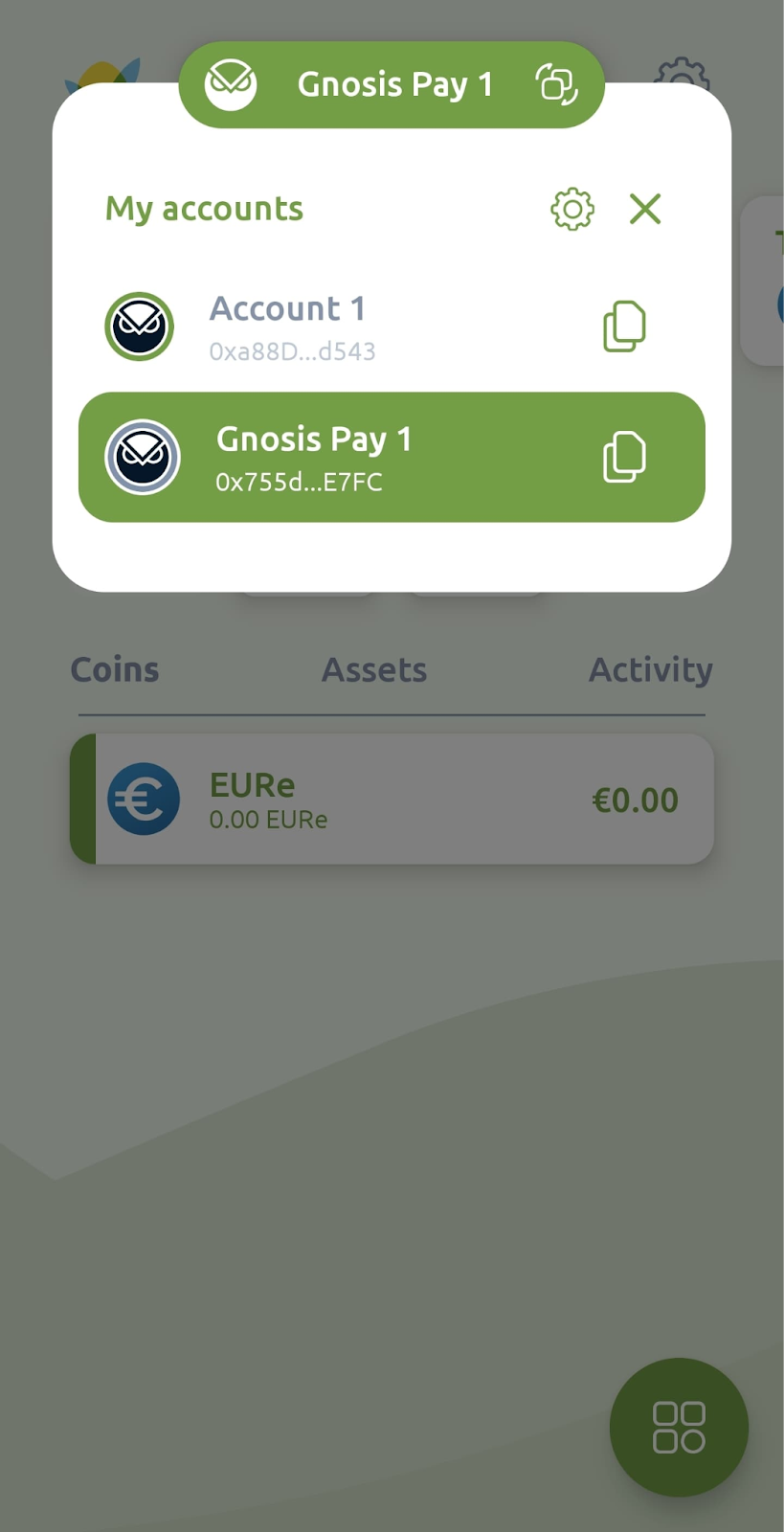
By completing this process, your Gnosis Pay account is now linked to your Greenhood Wallet. This means you’ll be able to:
- View your Gnosis Pay payment account directly in the app
- Manage card features like viewing or changing your PIN
Questions?
Check our FAQ, or reach out to support@greenhoodwallet.com if you need help.


